Registro de cambios
Mantente al día con los últimos cambios y mejoras.
Mantente al día con los últimos cambios y mejoras.
Mantente al día con los últimos cambios y mejoras.
07. Jul 2026
Compartir

Ever found the perfect song on YouTube but got stuck trying to download it before you could make a karaoke video?
Not anymore. 
Instead of downloading a YouTube video first, you can now paste the video link directly into the 1-Click Generator.
We'll automatically:
Import the audio
Separate the vocals
Generate and sync the lyrics
Only the audio is imported from the YouTube video. The original video is not used in your karaoke project, so you'll still choose your own background or visuals just like when uploading an audio file.
The generation process is exactly the same as uploading your own audio file—just much faster and more convenient.
Copy a supported YouTube video URL and paste it into the 1-Click Generator.
A preview will appear instantly so you can verify you've selected the correct song before generating.
Once you click Generate, we'll automatically:
Extract the audio in the cloud
Separate the vocals from the instrumental
Generate synchronized lyrics
Create your karaoke project
The YouTube video itself is not imported—only its audio is used to generate your karaoke project.
Everything happens automatically, so there's nothing to download or convert.
If you already have your own audio file, you can continue using the upload workflow as before.
Choose whichever method works best for you:
Paste a YouTube video link
Upload your own audio file
Generating a karaoke project from a YouTube video costs 1 credit per minute of the video.
Before generation starts, you'll always see the estimated credit cost, so there are no surprises.
Uploading your own audio files remains free.
The feature works with supported public YouTube videos.
If a video can't be processed due to restrictions or availability, you'll be notified before generation begins.
Creating karaoke projects has never been easier.
Find your favorite song on YouTube, paste the link into the 1-Click Generator, and let MyKaraoke Video do the rest.
We can't wait to see what you create! 

04. Mar 2026
Compartir
AI Transcription is now half the cost, you can click words directly in the Lyrics Editor preview to fix them, and we've aligned credit costs with our providers. Here's everything in this update.
AI Transcription now costs 5 credits per minute, down from 10.
We're making transcription the recommended way to sync your lyrics. When you use AI Transcription, our AI listens to your audio and generates word-level timestamps directly from what it hears — this produces the most accurate sync possible, especially for songs with complex vocals, harmonies, or fast-paced lyrics.
The tradeoff is that the AI may occasionally mishear a word, but fixing a misheard word is quick and easy compared to manually adjusting dozens of timing points in an inaccurate sync.
When you're in the Lyrics Editor (formerly known as Sync Editor) and spot a word that looks wrong in the video preview, you can now click it directly to edit it. Clicking a word pauses playback and opens the word editor right away.
Previously, you had to find the word in the lyrics timeline below, scroll to the right line, and then open the editor. This makes fixing misheard words from AI Transcription much faster — you see it, you click it, you fix it.
Credit costs are now always rounded up to the nearest minute. For example, a 1m 20s video now costs 2 credits instead of 1, and a 2m 05s video costs 3 instead of 2. Very short videos under a minute still cost 1 credit minimum.
This change aligns our billing with how our partners and providers charge us — they all round up to the nearest minute too. This makes our pricing more predictable and consistent across the board.
Transparent background exports will cost 1 credit per minute and files will be stored for 24 hours instead of 30 days. This is a very resource-intensive codec that produces huge files — often multiple gigabytes. We run a dedicated rendering system just to handle these, so we're unable to continue offering them at no cost. And given the file sizes, we can only keep them available for 24 hours instead of the usual 30 days.
One of our most requested features is finally coming. While the MP3+CDG format can't include all the visual features that MyKaraoke Video offers, we know many of you rely on legacy karaoke machines that only support this format. We're working on adding the ability to export an MP3+CDG file from any project.
25. Feb 2026
Compartir
You can now choose a background color for the Highlight effect, which will emphasize the current word. This new option works seamlessly with the existing color settings.
An image is worth a thousand words, but a video is worth a thousand images. Take a look below:
Happy creating!
25. Feb 2026
Compartir
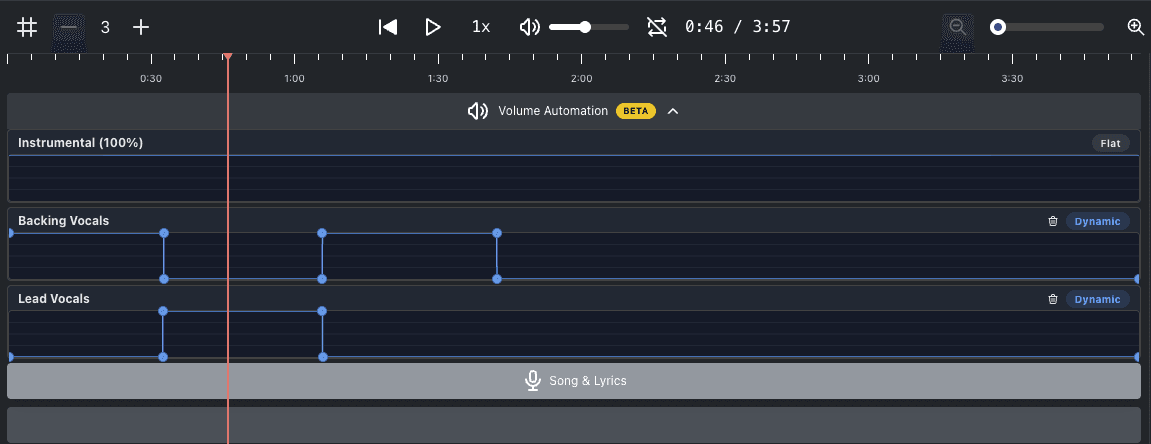
We're excited to introduce Volume Automation — a powerful new addition to the Advanced Editor that gives you full control over the volume of each audio track throughout your video.
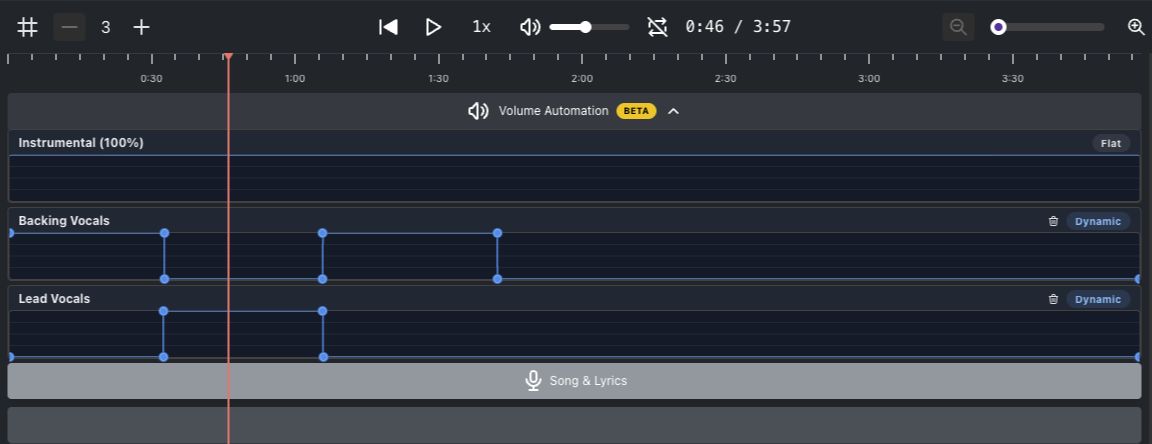
You can now adjust the volume of the Instrumental, Backing Vocals, and Lead Vocals tracks independently at any point in the timeline. Create smooth fade-ins, fade-outs, drop the vocals during a solo, or boost the instrumental for dramatic effect — all with a few clicks.
Click anywhere on a track's automation lane to add a keyframe
Drag keyframes to adjust volume and timing
Ctrl/Cmd + Click a keyframe to remove it
Reset a track with the trash bin icon to go back to a flat volume
Volume Automation is available in the Advanced Editor. Simply enable the Advanced Editor toggle in your project to get started.
For a full walkthrough, check out our help center article.
Volume Automation
Volume Automation gives you precise control over the volume of each audio track — Instrumental, Backing Vocals, and Lead Vocals — at any point in the timeline. Instead of a single, fixed volume level for an entire track, you can raise and lower each track dynamically throughout your video.
21. Nov 2025
Compartir
We’re excited to announce a game-changing new layout that lets you reach a global audience with a single click!
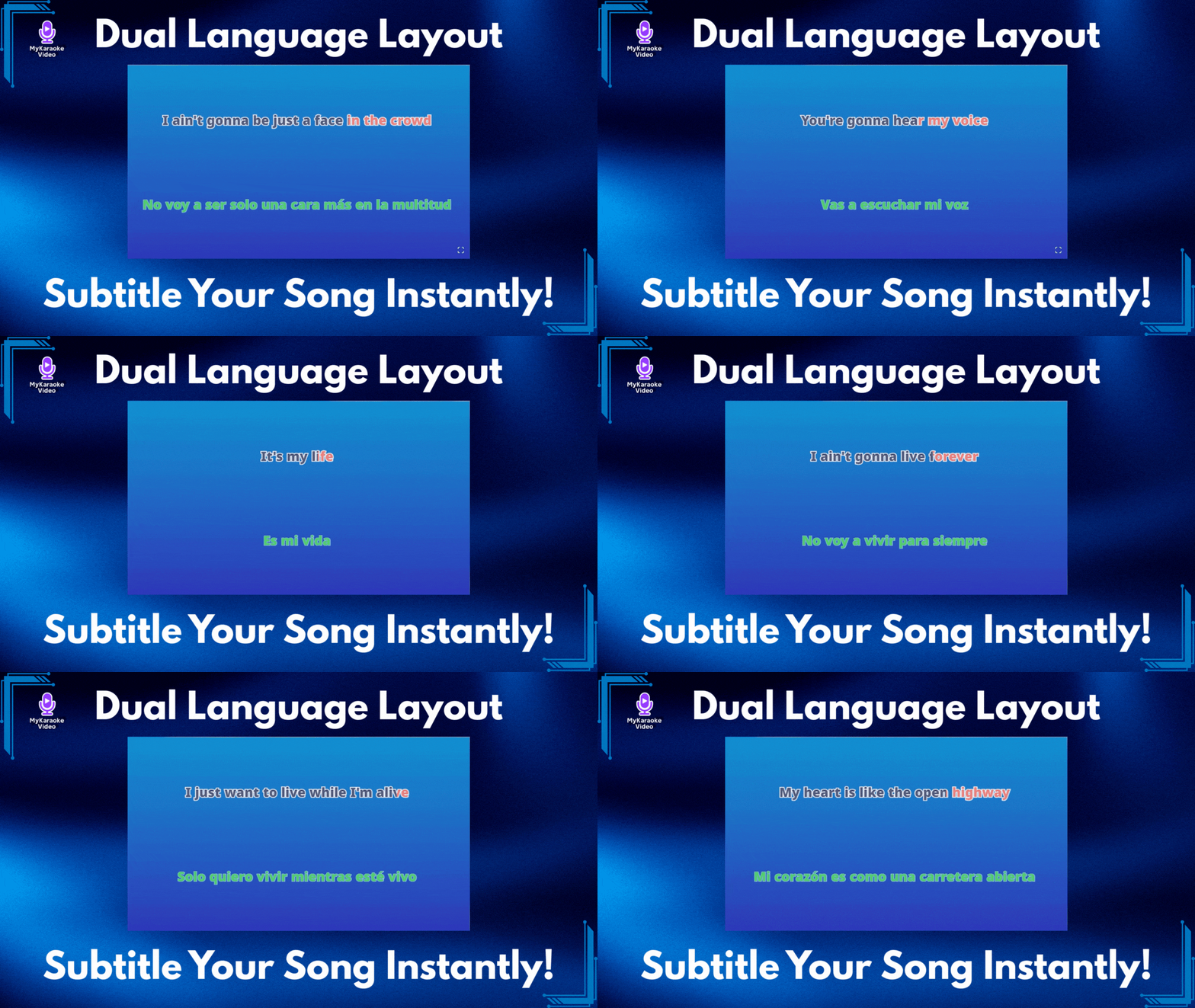
You asked for a way to add subtitles and translations to your videos, and we delivered. Say hello to the Dual Language Layout—the easiest way to display lyrics in two languages simultaneously, perfectly synced and beautifully styled.
The Dual Language Layout isn't just a new look; it's a complete solution for artists and creators. Whether you want to add English subtitles to a Spanish hit, or translate your song into Japanese for a new fanbase, this layout handles it all automatically.
To make this layout truly powerful, we’ve integrated a massive upgrade to our Sync Editor. You don't need to hire a translator or copy-paste text manually:
200+ Languages: Our AI can instantly translate your lyrics into over 200 languages.
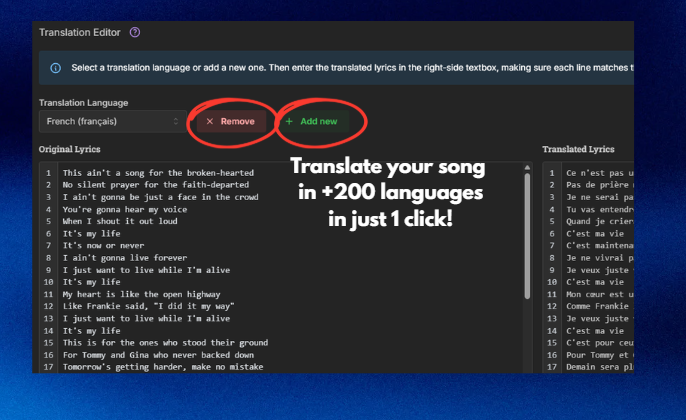
1-Click Simplicity: Just select your target language, click Translate with AI and let the AI do the work.
Automatic Sync: Here is the best part—you never have to sync the translation. The Dual Language Layout intelligently locks the translated text to your original timing. If your original lyrics are synced, your subtitles are too!
We know your brand matters. The Dual Language Layout gives you total control. You can style your Original Lyrics and your Translation independently—change fonts, colors, and sizes to ensure your primary lyrics pop while the subtitles remain easy to read.
Ready to go global?
Open the Sync Editor to generate your translation with AI.
Go to your Layout Settings and select Dual Language.
Customize, export and share!
For a step-by-step guide on using this new feature, visit our help center:
Dual Language Layout Guide: Translate & Sync Your Lyrics
Easily display synchronized lyrics in a second language using the Dual Language Layout and AI Translation.
18. Sep 2025
Compartir
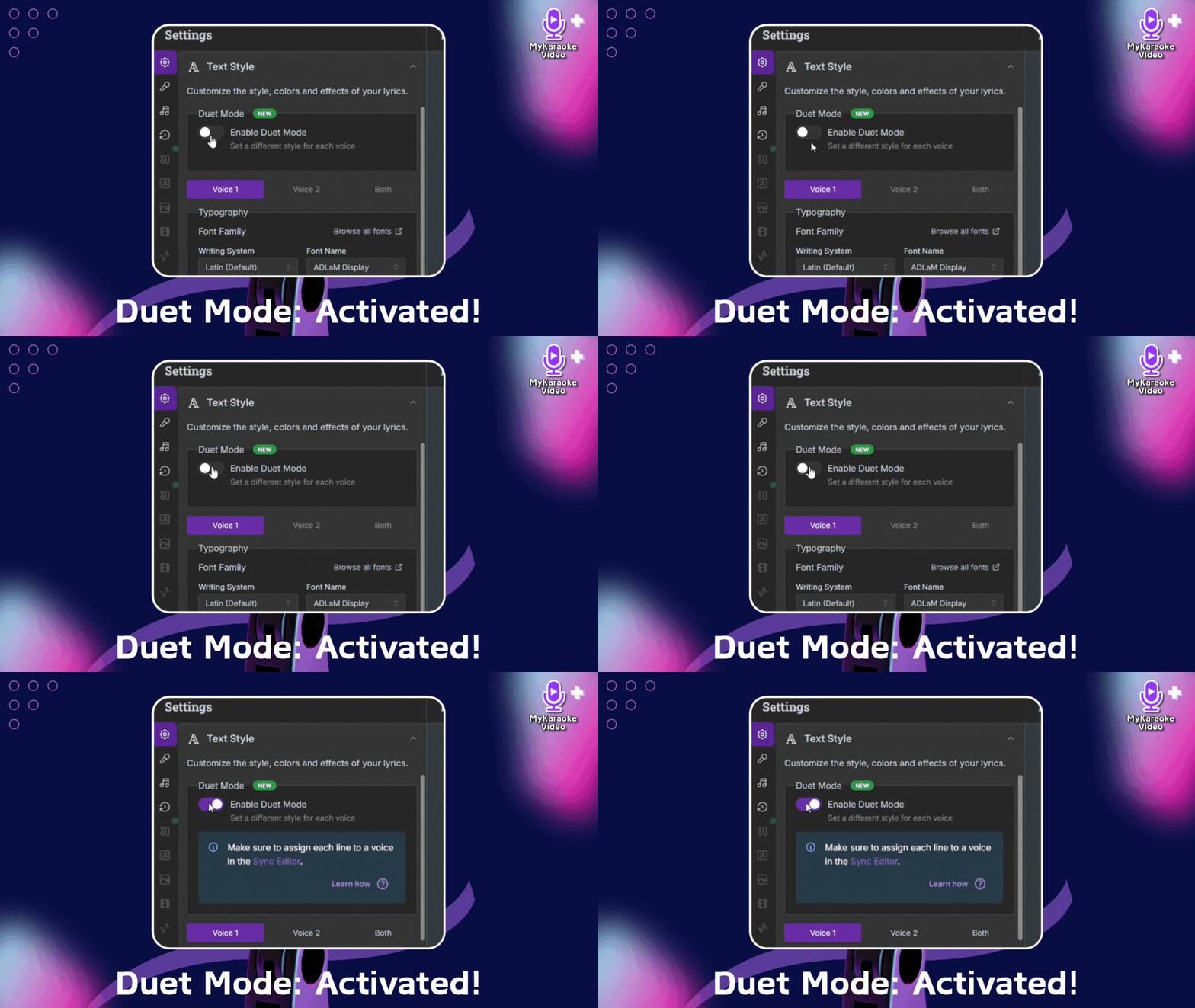
Get ready to take your karaoke and lyric videos to a whole new level of creativity! We're thrilled to announce a powerful new feature that's been highly requested: Duet Mode is now available for ALL our video layouts!
You know and love our versatile layouts – Karaoke, Scrolling, Single, and Duet – which give you amazing control over how your lyrics appear. While our dedicated Duet Layout remains a fantastic option for two singers, we've now unlocked even more flexibility.
Mastering Video Layouts and Text Styles
A Guide to Customizing Your Lyric and Karaoke Video Appearance
You can now enable Duet Mode within any of our existing layouts. This means if you want to create a video for a song sung by two people but prefer the aesthetic of a scrolling video, or a unique single-singer layout, you absolutely can! The core Duet layout is still here, but this new mode empowers you to apply two-singer styling across the board, giving you more options than ever for duets.
If you have more questions about using Duet Mode, please visit this article:
Duets: How to use the Duet layout
Learn to create multi-singer karaoke videos with MyKaraoke Video's Duet layout. This guide covers activating duet layout, assigning lyrics to singers in the sync editor, understanding color coding (blue/red/green), and customizing text styles. Also explains how to prevent doubled lyrics when both singers are active. Perfect for duets, group performances, and distinguishing between different vocalists.
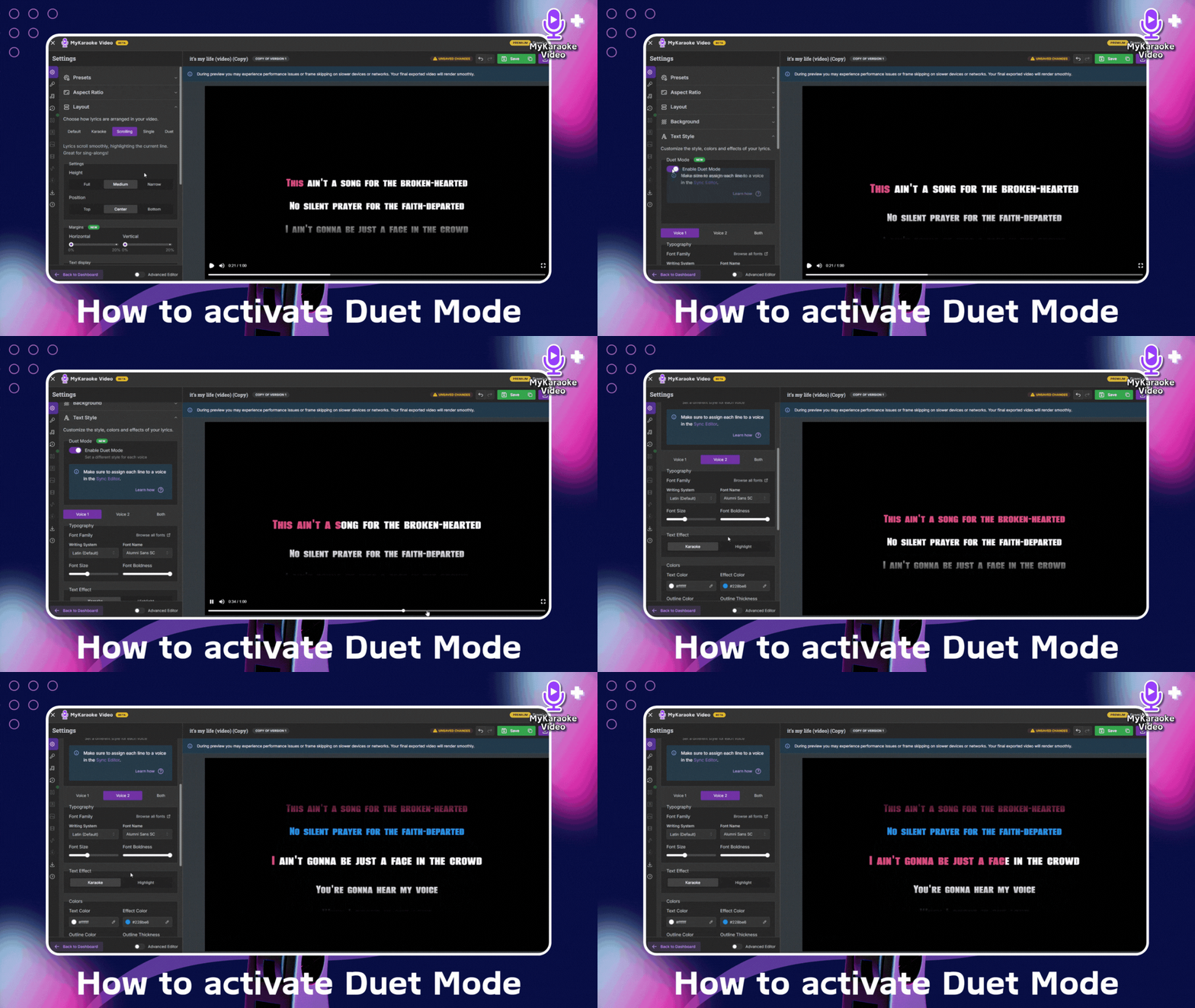
To activate this powerful feature, simply navigate to the Settings menu, then find the "Text Style" option. You'll find the new "Enable Duet Mode" toggle there. Once activated, you'll have the power to customize:
Typography: Choose unique fonts, sizes, and weights for each singer.
Colors: Differentiate voices with distinct text and effect colors.
Effects: You can choose between Karaoke and Highlight Effect

We believe this new flexibility will unlock incredible possibilities for your videos, allowing for more visually engaging and personalized experiences for your audience.
Ready to give it a try? Dive into your projects and explore the new Duet Mode today!
Happy Creating!
The mykaraoke.video Team