Changelogs
Stay up to date with the latest changes and enhancements.
Stay up to date with the latest changes and enhancements.

25. Feb 2026
Share
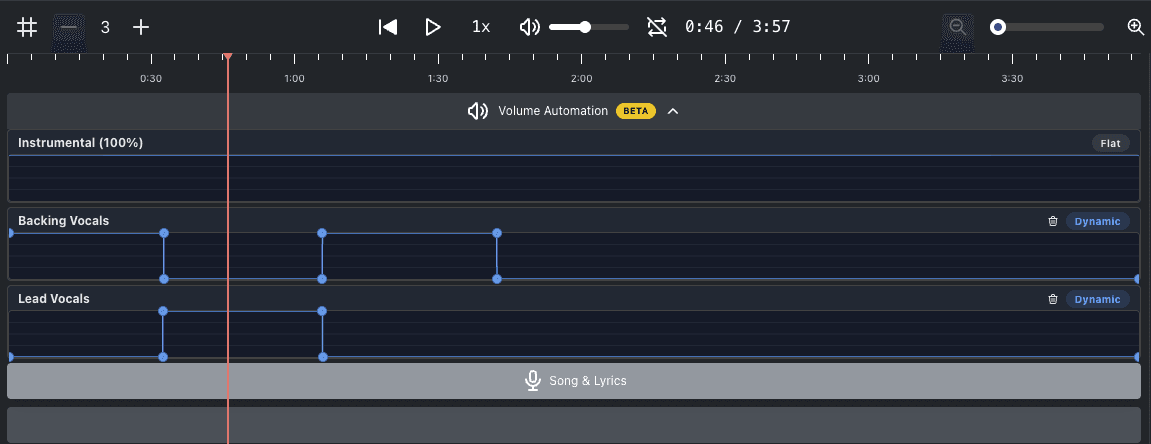
We're excited to introduce Volume Automation — a powerful new addition to the Advanced Editor that gives you full control over the volume of each audio track throughout your video.
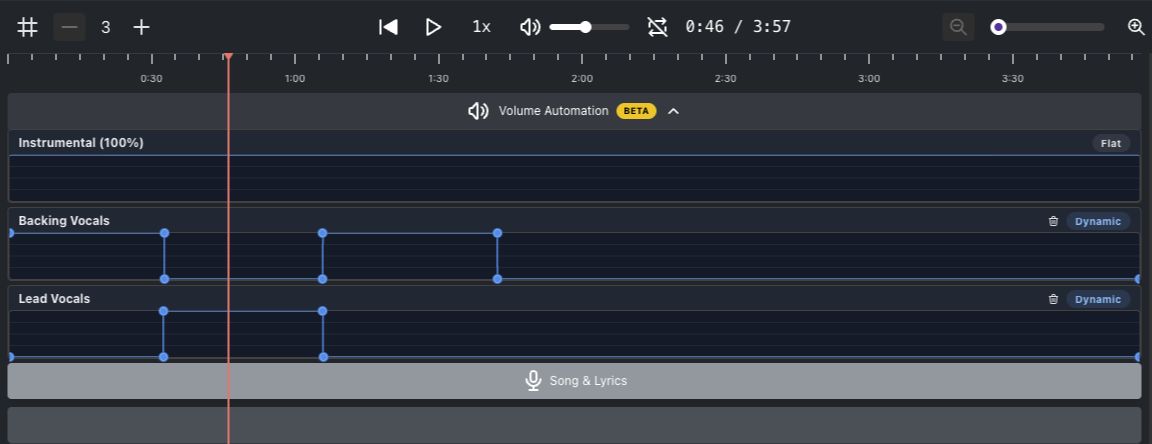
You can now adjust the volume of the Instrumental, Backing Vocals, and Lead Vocals tracks independently at any point in the timeline. Create smooth fade-ins, fade-outs, drop the vocals during a solo, or boost the instrumental for dramatic effect — all with a few clicks.
Click anywhere on a track's automation lane to add a keyframe
Drag keyframes to adjust volume and timing
Ctrl/Cmd + Click a keyframe to remove it
Reset a track with the trash bin icon to go back to a flat volume
Volume Automation is available in the Advanced Editor. Simply enable the Advanced Editor toggle in your project to get started.
For a full walkthrough, check out our help center article.
Volume Automation
Volume Automation gives you precise control over the volume of each audio track — Instrumental, Backing Vocals, and Lead Vocals — at any point in the timeline. Instead of a single, fixed volume level for an entire track, you can raise and lower each track dynamically throughout your video.